
Event Viewer, services and updates: keeping a Windows server observable and current
How Windows event logs are read, how services are controlled, and how updates arrive.
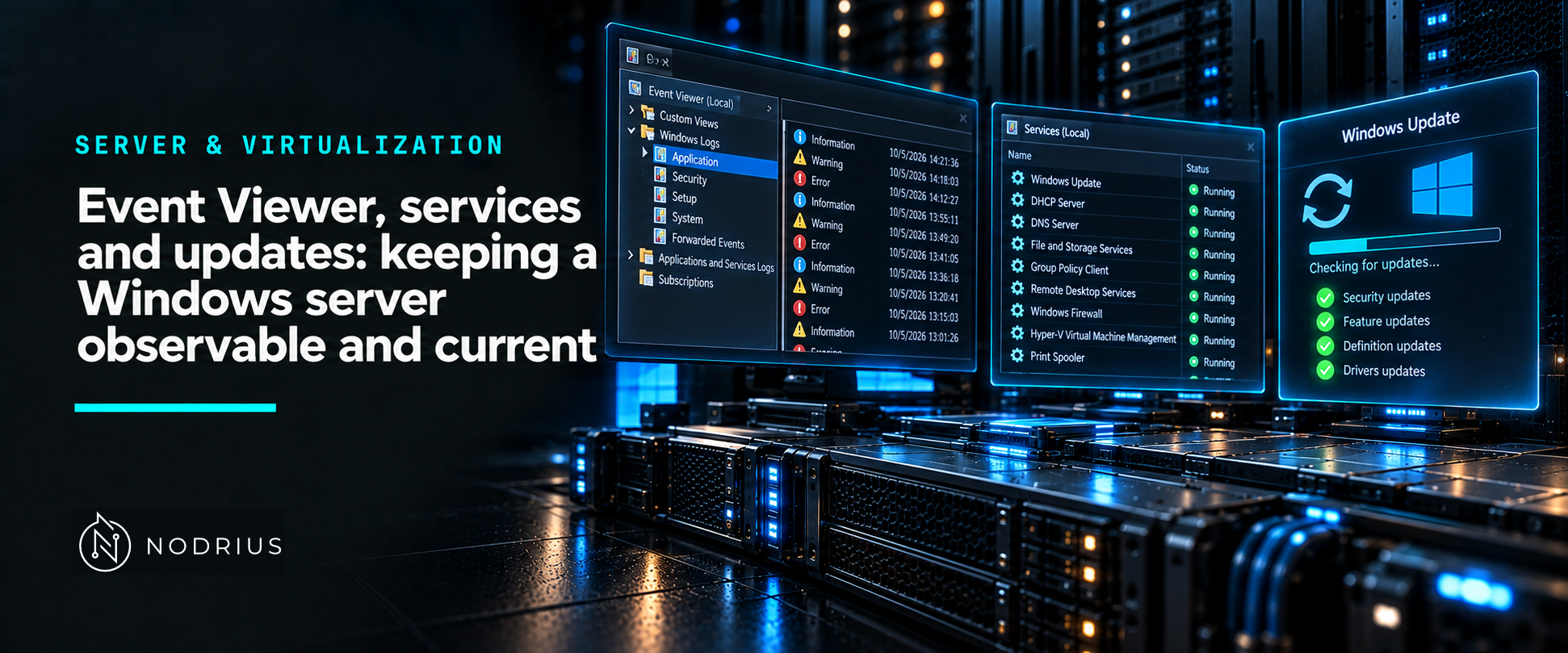
Three questions decide whether a Windows server is under control: what happened (the event logs), what is running (the services), and what is patched (Windows Update, or an update server). They are answered from the same console — Event Viewer, Services and Windows Update — or from the same command line with Get-WinEvent, Get-Service and the update tooling. Observability is not a product added later; it is these three views, read on purpose.
Where the events live
Event Viewer’s Windows Logs tree holds the classic logs — Application, Security and System — which Microsoft notes have existed since Windows NT 3.1. Everything else appears under Applications and Services Logs, where each component’s Event Tracing for Windows (ETW) providers are listed and can be enabled or disabled. That tree is the first place to look when troubleshooting a single component, because it is where that component’s own diagnostics live.
Every event also carries a level, and the numbers are standard:
| Level | Value | Meaning |
|---|---|---|
| Critical | 1 | A serious error that has caused a major failure |
| Error | 2 | A normal error that signifies a problem |
| Warning | 3 | A condition to watch, such as a disk nearing full capacity |
| Informational | 4 | Progress or state, not an error |
| Verbose | 5 | Lengthy detail, usually off by default |
Reading logs from the command line
Get-WinEvent is the current cmdlet; Microsoft describes it as designed to replace Get-EventLog, which reads only the classic logs and survives for backward compatibility. Get-WinEvent reads the classic logs and the newer ones, and by default returns events newest first. It filters with XPath (-FilterXPath), with a structured XML query (-FilterXml) or, most usefully, with a hash table:
Get-WinEvent -ListLog *
Get-WinEvent -FilterHashtable @{ LogName='System'; Level=2; StartTime=(Get-Date).AddDays(-1) }
Get-WinEvent -FilterHashtable @{ LogName='Application'; ID=1000 } -MaxEvents 20
Get-WinEvent -LogName 'Microsoft-Windows-...' -Force
The valid hash-table keys include LogName, ProviderName, ID, Level, StartTime, EndTime and UserID. Three limits are documented. Debug and analytic logs are excluded by default: naming the log in full is enough to reach one, while -Force is required when the name is a wildcard. The Windows API that Get-WinEvent queries has a documented limit of 256, so a catalogue-wide sweep needs a loop over Get-WinEvent -ListLog *. And a session that is not elevated may simply fail to read a log.
wevtutil is the older command-line equivalent, useful where PowerShell is not available. Its verbs include el (enumerate logs), gl (get one log), qe (query events), epl (export a log) and cl (clear a log), with /f:XML or /f:Text selecting the output format.
Services: what is running, and in what order
Get-Service returns running and stopped services; -Name and -DisplayName select them, while -DependentServices and -RequiredServices walk the dependency graph. Services start in dependency order, which is why stopping one service can take others down with it.
Get-Service -Name 'W3SVC' -DependentServices
Set-Service -Name 'W3SVC' -StartupType Automatic
sc.exe qc W3SVC
sc.exe config W3SVC depend= RPCSS/HTTP
Set-Service changes StartupType (Automatic, Manual, Disabled) and Status, and requires elevation. sc.exe config writes the same properties and documents the service start types auto, demand, disabled and delayed-auto. Two syntax traps: each option must include its = and a space before the value (start= auto), and depend= sets the whole dependency list rather than adding an entry to it [FACT TO VERIFY]. sc.exe qc prints the current configuration, which is what you want before changing anything.
Updates and the update cycle
Windows servers are patched either directly from Windows Update or through Windows Server Update Services (WSUS), a Windows Server role that gives an organisation a single hub for Microsoft updates so that administrators can defer updates, approve them selectively, and choose which devices or groups receive them. WSUS is documented as deprecated — it is no longer adding new features — but it remains supported for production deployments and still receives security and quality updates.
How a client finds its updates is policy, not a setting on each machine. Configure Automatic Updates and Specify intranet Microsoft update service location are the two Group Policy settings that point a server at WSUS. On Windows Server the Configure Automatic Updates policy is effectively option 3 (auto download, notify before install) in the registry by default, and that default is not shown in the Group Policy editor. Around those settings sit the deployment rings — typically a pilot group, a fast group and a slow group — implemented as deferrals: Microsoft documents feature-update deferrals of up to 365 days, quality-update deferrals of up to 30 days, and a pause of up to 35 days.
Limits and the common error
Each of the three views is partial. A log large enough to overwrite has already destroyed evidence, so retention is a decision made before the incident, not after. A service whose status is Running can still be failing — Get-Service reports state, not health, which is why the event logs and the service’s own dependencies have to be read together. And “updates are installed” is not “the server is at a known state”: a pending restart, or an approval that never reached a ring, leaves those two statements far apart.
The common error is reading one view as the whole picture: chasing an event ID without checking whether the service behind it is running, or stopping a service without asking what depends on it. The reverse error is passive hope — assuming that if nothing is red in Event Viewer, nothing is wrong. Most of the useful signal sits at Warning and Informational, and those are exactly what a default filter hides.
Level and prerequisites. L2 — operational: read the logs, inspect and control services, and understand how patches arrive. Prerequisites: the L1 sheet on processes and services, and the L1 sheet on users, groups and permissions — the Security log is only readable with the right rights, and every service runs as some identity.
Where to go next
- Server & Virtualization — the area this sheet belongs to.
- Operating systems — the node this sheet sits in.
- Platform foundations — the baseline a server is measured against once it is patched.
References
- Microsoft Learn — Get-WinEvent (Microsoft.PowerShell.Diagnostics) — https://learn.microsoft.com/en-us/powershell/module/microsoft.powershell.diagnostics/get-winevent
- Microsoft Learn — wevtutil — https://learn.microsoft.com/en-us/windows-server/administration/windows-commands/wevtutil
- Microsoft Learn — Event Viewer (Inside Show) — https://learn.microsoft.com/en-us/shows/inside/event-viewer
- Microsoft Learn — StandardEventLevel Enum (System.Diagnostics.Eventing.Reader) — https://learn.microsoft.com/en-us/dotnet/api/system.diagnostics.eventing.reader.standardeventlevel
- Microsoft Learn — Get-Service (Microsoft.PowerShell.Management) — https://learn.microsoft.com/en-us/powershell/module/microsoft.powershell.management/get-service
- Microsoft Learn — Set-Service (Microsoft.PowerShell.Management) — https://learn.microsoft.com/en-us/powershell/module/microsoft.powershell.management/set-service
- Microsoft Learn — sc.exe config — https://learn.microsoft.com/en-us/windows-server/administration/windows-commands/sc-config
- Microsoft Learn — Windows Server Update Services (WSUS) Overview — https://learn.microsoft.com/en-us/windows-server/administration/windows-server-update-services/get-started/windows-server-update-services-wsus
- Microsoft Learn — Deploy updates using Windows Server Update Services — https://learn.microsoft.com/en-us/windows/deployment/update/waas-manage-updates-wsus
- Microsoft Learn — Update Management with Windows Server Update Services — https://learn.microsoft.com/en-us/windows-server/administration/windows-server-update-services/manage/update-management-with-windows-server-update-services
- Microsoft Learn — Step 4 - Configure Group Policy Settings for Automatic Updates — https://learn.microsoft.com/en-us/windows-server/administration/windows-server-update-services/deploy/4-configure-group-policy-settings-for-automatic-updates
- Microsoft Learn — Configure Windows Update client policies via Group Policy — https://learn.microsoft.com/en-us/windows/deployment/update/waas-wufb-group-policy